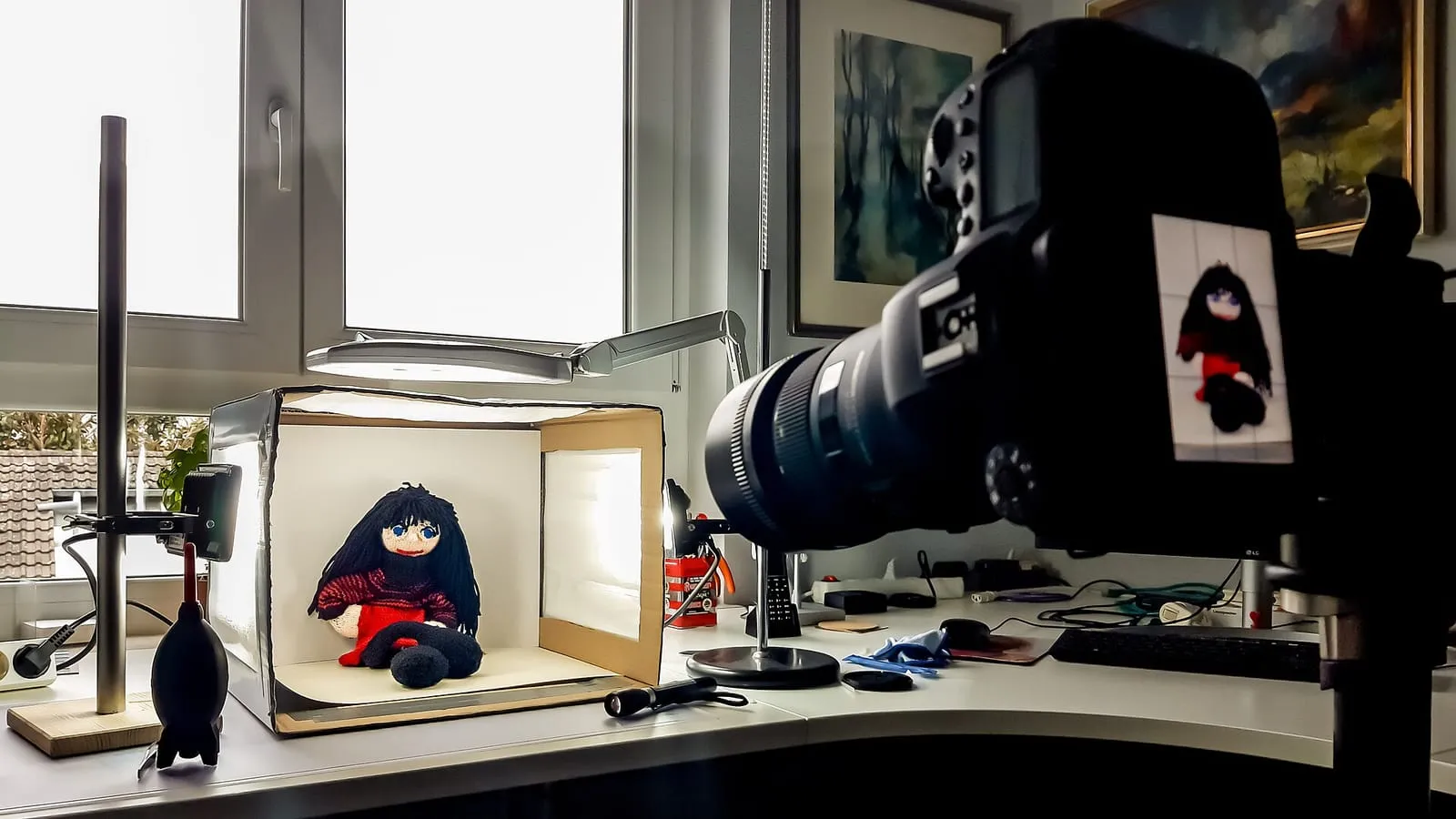
In an online store, the photo does the salesperson’s job: it’s what customers look at before they read the price. The good news is you don’t need a professional camera. With a phone, a window and a bit of order you can get clean, consistent photos ready to upload.
1. Use natural light from the side
Light changes a photo more than anything else. Place the product near a window, out of direct sun, with the light coming in from the side. A cloudy day is ideal because the light is even.
Turn off the ceiling lights: mixing window light with yellow lamps gives odd colors. If one side is too dark, put a sheet of white card or foam board opposite the window to bounce the light back.
2. A plain background, always the same
A white or light gray background makes the product the star. The simplest setup is a large sheet of card propped against the wall and curved onto the table, without a sharp fold. For small products, a light box like the one in the photo above works well.
Google doesn’t require a white background, but it does ask for a clean, unobstructed view of the product, according to its image requirements for Merchant Center. More important than the color is using the same background across your whole catalog: it makes the store look organized.
3. Get your phone ready
- Clean the lens. A fingerprint blurs everything, and it’s the most common mistake.
- Don’t use digital zoom (pinching the screen): it loses quality. If your phone has a 2x or 3x camera, that one is fine.
- Tap the screen on the product to focus and set the exposure.
- Rest it on something steady or a cheap tripod, and use the timer so the photo isn’t blurry.
4. Frame with some room, but not too much
The product should fill almost the whole photo. Google recommends it take up between 75% and 90% of the image. Shoot a little wider than needed and crop later: it’s easier to crop than to add space.
Keep the same distance and height for similar products. If every T-shirt is shot the same way, your store’s grid looks even.
5. Take several photos of each product
One photo isn’t enough to decide. A good set includes:
- Front, the main photo.
- Side and back.
- A detail: the fabric, the stitching, the zipper, the label.
- A photo in use or with scale, so people get the size (in a hand, worn, on a table).
If the product comes in several colors, each variant needs its own photo. Google asks for that too.
6. The sizes platforms ask for
| Platform | Recommended size | File size |
|---|---|---|
| Tiendanube | 1280 × 1280 px (square) | 100 to 500 KB (suggested) |
| Shopify | 2048 × 2048 px (square) | Up to 20 MB |
| Google Merchant Center | 1500 × 1500 px or larger | Up to 16 MB |
Sources: help pages from Tiendanube, Shopify and Google, checked in November 2026. Google announced that from January 31, 2027 it will require a minimum of 500 × 500 px for all products.
Tiendanube also recommends that all photos share the same size and proportions, and that they weigh between 100 and 500 KB so the store loads fast. For clothing it accepts photos taller than they are wide (1280 × 2250 px), always with 1280 px on the shorter side. Phone photos usually weigh several MB: you need to shrink them before uploading.
7. Make them consistent in a minute
Squaring, centering and leaving the same margin on 30 photos by hand takes an afternoon. With our product photo tool you load them together, choose the size and margin, and download them all matching. It works in your browser: the photos aren’t uploaded anywhere. It doesn’t remove backgrounds, so it’s best to shoot them on a plain background to begin with.
Then run them through the image compressor to cut the file size without a visible difference. In how to optimize images for your website we explain why it matters for speed.
8. What can get rejected
If you’re going to show your products on Google Shopping, Google says images can’t include:
- Promotional text such as “Buy now”, “Free shipping”, prices or “New”.
- Watermarks, overlaid logos or the store name on top.
- Borders, “coming soon” images or placeholder photos.
For your own store or social media you can use a watermark if people copy your photos, but always keep a clean version for Google and marketplaces.
Wrapping up
An afternoon of well-taken photos pays off for years. If you want your store to live up to those photos, in Stores and wholesale we explain how we build catalogs that look good and load fast.